
Onsite Adobe Training
Courses, eLearning Courses
Our Adobe Training Courses Midlands and UK-Wide are digital design courses run both onsite at your premises or virtually online. If you are looking for Bespoke Design Training then together we can design a completely customised training event. We specialise in the delivery of high quality digital design training and eLearning courses for all levels of expertise.
PROUD TO WORK WITH
Totally bespoke tailored Training for you and your team
The focus is specifically on your and your team, these are not generic one size fits all courses.
The training is organised on mutually agreed dates
OUR DIGITAL DESIGN TRAINING COURSES
Our Adobe Training Courses Midlands and UK-Wide are digital design courses run both onsite at your premises or virtually online or recorded videos.
Tailored Adobe Training Courses
In addition to set outlines here at Greta Powell Training we realise a one size fits all approach is not for everyone. If you are looking for a more tailored Adobe training approach then we design and deliver completely bespoke training courses that give you the skills you need.
Onsite Adobe Training
Being Midlands based we travel UK wide to deliver face to face onsite training courses hosted on your premises at flexible times and dates to suit you.
FIND OUT MORE >
Recorded Adobe Courses
Our courses are also available in pre-recorded format.
FIND OUT MORE >
Online Courses
The online design training courses are delivered with a live instructor with whom you can interact with in real time.
FIND OUT MORE >
DISCOVER
- All Posts
- Adobe After Effects Training
- Adobe CC Express
- Adobe Illustrator
- Adobe Illustrator Training
- Adobe InDesign
- Adobe Lightroom
- Affinity
- Camtasia
- Captivate
- Course Updates
- Creative Cloud Express
- eLearning
- eLearning Training
- Free
- General
- Greta Powell
- Illustrator Courses
- InDesign Courses
- InDesign PDF Interactive
- InDesign Tips
- Live Online Training
- MS Publisher Training
- Paid
- Photography
- Photoshop AI
- Photoshop Courses
- Photoshop Tips
- PowerPoint Training
- Premier Pro Training
- Prezi
- Site News
- Social Media
- Social Media Video
- Training Briefs
- Training Examples
- Two Minute Tut's
- Uncategorised
- Video Editing Training
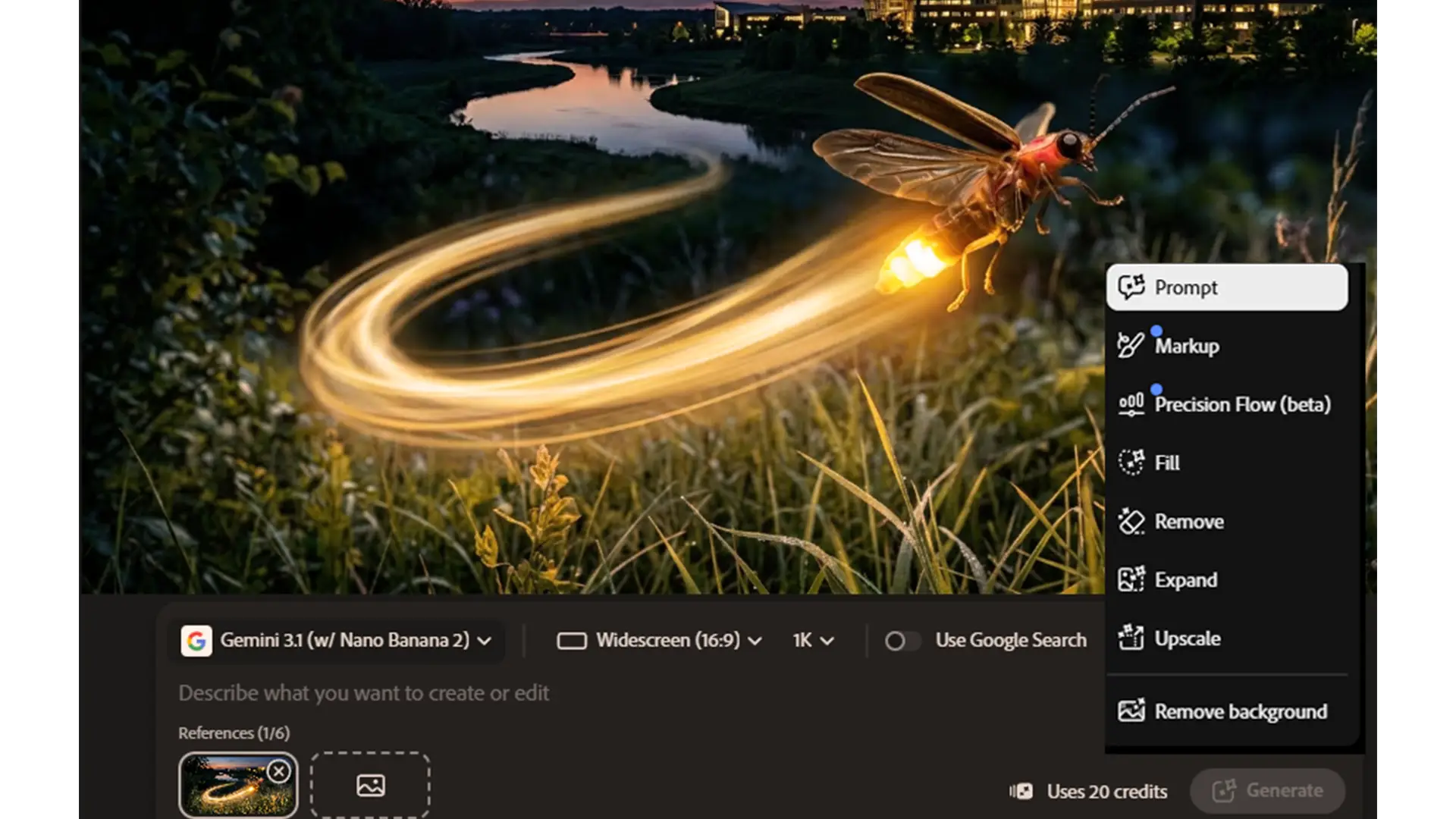
Adobe 2026: What’s changed and what it means for your team Adobe hasn’t just added a few new AI tricks. Over the past year they’ve quietly reshaped the entire Creative Cloud ecosystem — and if your organisation uses Adobe, these changes will affect how your team works, collaborates and produces content. After delivering several Adobe Express and Creative Cloud courses recently (and doing a fair bit of snooping around), it’s clear that Adobe is moving in a very deliberate direction:...
RECORDED TRAINING COURSES
Coming soon are our recorded digital design training courses starting with our short intense quick start videos. Running for approximately 4 hours these are all introduction level courses aimed at giving the beginner a fast kickstart in graphic design training.


Onsite Adobe Training Courses Midlands & UK
Based in the Midlands we travel extensively UK wide to cities and areas as far apart as York, London, Birmingham, Liverpool, Nottingham, Leicester, Sheffield, Leeds, Lincoln, Oxford, Birmingham and all surrounding areas.
Our onsite face to face training courses are hosted on your premises on dates and times that fit into your schedule.
Online Adobe Training Courses Midlands & UK
Our online Adobe training courses are delivered with a live instructor via video conferenceing software. You’ll interact with your trainer in real time by seeing, hearing and sharing screens with the trainer.
In fact, do most of the things you would in a traditional training room, well apart from sharing tea and biscuits that is. We haven’t quite worked out how to do that yet but give us time.
ABOUT
We have set course outlines onsite here at Greta Powell Training from introduction to advanced levels but we realise that traditional ‘one size fits all training’ does not suit everyone.
We often take a more specialised approach with tailored design training aimed at giving you skills you really need.
Our courses are run in Adobe, Serif, Quark and whatever your level of expertise we can organise digital workshops,
Microsoft PowerPoint Design
Dr.Natasha Davidson
Premier Pro Training Course
Rebecca
EMA – Marketing & Comms
Enjoyed! Learnt a lot and will find the software much easier now.
Amy
EMA – Marketing & Comms
Thank you for all the courses, they have been great and have helped to understand so much more about Adobe.
Bethan
Marketing
Very informative & easy to follow. It helps so much when you can watch then do the task yourself. Totally tailor made for us which really helped.
Clare
Marketing & Comms
Premier Pro Video Editing Course
Kind regards
Lynette
Membership Services Manager
InDesign Introduction /Bespoke Workshop
Digital Marketing Executive
Amazing! I’ve learnt loads today and the training will definitely make my day-to-day design work a lot easier and quicker.
Thank you!
Events & Comms
Great, extremely informative and tailored to our needs throughout the day which kept it relevant to our needs.
Management Assistant
Awesome training course, very interesting. Learnt so much today, a great training session.
Office Administrator
Illustrator Introduction /Tailored Training
Marketing Team
Very effective course, I managed to learn a lot in a very small amount of time. Course was not too fast paced and well explained. The training equipment (laptop) was good. A friendly atmosphere.
Marketing
Introduction to InDesign /Workshop
Head of Interpretation & Display
Good introduction as I knew very little. Good to ask questions and get help even though we were a large group. I learnt lots about the different features.
Marketing & Digital Engagement
Introduction /Tailored InDesign Course
Registrar
InDesign Introduction /Bespoke Training
Operations Director
Fabulous! Took away my fear and I’m now really keen to get practising and experimenting. She so quickly tailored and understood our diverse needs for InDesign.
Marketing & PR Manager
Thank you. Greta created an incredibly safe environment which helped me to ask questions and get bespoke advice.
Teacher
A very good grounding in InDesign on which to build on. Delivered in an easy to understand manner.
IT Engineer
Bespoke eLearning Training
Senior Technical Author
A very comprehensive course with lots of information given. Greta was extremely helpful with any questions we had.
Senior Technical Author
Very helpful and very knowledgeable. She was able to answer the questions thrown at here.
eLearning Apprentice
Photoshop Introduction / Tailored Training
Helen Hagues, Manager
The course was brilliant, it was really informative and fun. Learning new skills in a short space of time can be difficult but this was a real pleasure. I feel confident in moving forward & exploring the new skills.
Social Media
Premier Pro Training Course
Regional Marketing Manager
Amazing Course, I loved every second of it. Greta is an amazing trainer and so much fun to be with. Thanks to her my confidence in yet another Adobe product has shot up. Would we use her again? 100%, again and again and again.
Marketing Executive
Brilliant, really brilliant training. She adapted to the aspects of the software we needed to focus on. Greta is friendly, approachable and Extremely Patient.
Senior Marketing Manager
Captivate Tailored Tailored
Training Co-Ordinator, Learning & Development
Really enjoyed this training and would definitely recommend. I hope to see you again.
Business Support
A fantastic training session which was to the point and provided fantastic knowledge of the software. The trainer was friendly, patient and open to all our queries. I found the training session very very useful.
Information Management Support
Camtasia eLearning Course
Director
Stimulus Consulting LTD.
Awesome! She answered all my questions and had lots of useful suggestions for the functions we needed. An absolutely lovely lady with a great sense of humour.
Salesforce Instructor
Excellent! Perfectly matched to our individual requirements.
Salesforce Trainer
Adobe Captivate Customised
ICT Systems Trainer
Adobe Captivate Course
Head of Brand & Comms
Really good fun training. Having never worked with eLearning software before I now have a much greater understanding. Greta made the day really enjoyable and informative. Thanks Greta
Creative Designer
Graphic Design Course - Tailored
Communications Advisor, NFU
Loved this course, learnt so much information. An excellent teacher giving plenty of chances to ask questions. It was great that the course was tailored so we could ask questions we really wanted answers to.
Administration, NFU
Microsoft Publisher Tailored
PA to the Mayor
Great course that provided good creative ideas. She took away the fear of the unknown.
Town Hall Manager
Superb course with loads of useful tips and guidance.
Deputy Town Clerk
InDesign Introduction for Marketing
Director of Marketing & External Communications
The course was very beginner-friendly and Greta was so easy to follow. She made an intimidating program simple to learn.
Marketing Assistant
Great, a really informative introduction course. Very relaxed atmosphere.
Concerts & Musical Projects Adminstrator
A really helpful course. Thank you Greta, I no longer feel afraid to tackle InDesign and will be using it frequently in the future.
Marketing & Comms Team
Oakham School
Adobe InDesign Introduction
Marketing
Crystal clear, she used lots of examples then applied them to our product. Very approachable trainer, easy to work with.
Marketing Manager
Adobe MasterClass
Just wanted to say a huge thank you from the team for the excellent training you delivered last week. It was really comprehensive and practical, and we have all been able to put our new skills into practice as part of our day-to-day jobs! This has made a really positive impact on the team, which I’m sure will benefit us for a long time to come.
Marketing
United Learning
Microsoft Publisher Tailored /Advanced
Thank you
Designer
A very informative training session. Great to have a hands on trainer. There was plenty of time between topics to find you own way.
Thank you
Design Team
A very good training session that covered all the elements requested.
Lead Designer
Graphic Design Training
Regional Marketing Manager
Brilliant! I loved how we could adapt the training to our main marketing activity needs. It was great to be able to choose which Adobe programs we needed.
Marketing
Amazing course! I learned so much especially how each piece of software worked together. Increased my confidence in design and this will definitely contribute to the advancement of my career.
Marketing
Graphic Design Course (InDesign, Photoshop & Illustrator)
Digital Marketing
InDesign & Photoshop (Combo) Course
Marketing Manager, ECS Group
In short. A very good and informative course with a knowledgeable, interesting trainer with great banter and repertoire. Would highly recommend this trainer and hope to work with her again.
Marketing, ECS Group
InDesign Tailored Workshop
Senior Trainer
Very Informative with plenty of time to practice with a flexible course to fit our needs.
Admin
Adobe Photoshop Tailored Workshop
It was lovely to meet you, I’m sure we’ll be in touch in the future for more sessions.
Best wishes, Sam
InDesign Introduction Course
Thanks Greta. We’re now in love.
Sales & Marketing
Brilliant. Thank you so much. We both learnt so much. You were very helpful and patient.
Thanks again Greta
Sales
InDesign Interactive Training
I had so much fun learning about InDesign. This training is very flexible, relaxed and engaging. Thank you Greta
Production
Excellent!
We learnt so much and Greta made complex processes very simple and digestible. A fun and creative course that Greta personalised just for us.
Thank you Greta
Production
Photoshop /Lightroom
Head of Photography
Adobe Captivate Training
eLearning Developer
Course was friendly and informative. It covered everything in depth with plenty of advice and ideas for progression
Creative Director
Illustrator Training for Fashion
Senior Buyer
The course was set at a specific level for us. Greta was attentive and gave time to learn and ask questions. A perfect pace.
Lingerie Research & Development Manager
Bravissimo
InDesign PDF Interactive
Marketing & Social Media
Fantastic job, I now understand the software and its potential.
IT Dept
InDesign Tailored Training
Managing Editor
An excellent session which has helped enormously to fill in the significant gaps in my InDesign knowledge. We worked through all our set criteria but at a manageable pace. I believe the skills I learnt today allow me to continue learn more effectively than ever before.
Thank you
Designer
Adobe Captivate Course
Trainer and eLearning Content Creator for eLearning Development
Microsoft PowerPoint Training Course
Virtual PA
She covered everything we asked for. We learnt a lot of new things in PowerPoint during the course. Great training – Thank you
Virtual PA
InDesign Tailored /Interactive Training
Design & PR Team
Photoshop & InDesign Training
Marketing
Really enjoyed the course. What I learnt will make my work much easier in the future.
Marketing
Photoshop Introduction /Tailored Printing Techniques
Print Production
Great, a very hands on tailored training session. Thank you Greta
Marketing Manager
InDesign Bespoke Training
Design & Production
Excellent, met all our additional requirements for our individual team.
Design & Production
I really enjoyed the course. There was a lot to take in but all useful stuff that I can take away and use. Well presented, thank you Greta.
Design & Production Team
PowerPoint Tailored
Creative Director
MAXX Design, Newbury
Really engaging session, the training was really detailed and in-depth. Greta made it a really good day
Designer
MAXX Design
Very informative with a refreshingly personal approach to training.
Design
MAXX Design
Very, very helpful. She made everything so much clearer and delivered the course in an enjoyable way. I am no longer scared of PowerPoint. Thank you Greta
Designer
MAXX Design
Introduction to Photoshop Training
Head of Marketing and Communications
Adobe InDesign Introduction Course
Thank you Greta for your patience
Proprietor /Marketing Director
Adobe MasterClass & Captivate
Operations Manager
Learning & Development
Excellent Training, Greta was fantastic, supportful and helpful.
Instructional Designer
Learning & Development
Really great training & trainer, patient, flexible and knowledgeable. Great examples given and plenty of time for practice. Thank you Greta!
Instructional Design Consultant
InDesign Tailored Training
Thanks Greta
Photoshop Web Graphics Course
Art Director
London
InDesign Training for Magazines
Photoshop Introduction /Tailored
Marketing
Photoshop Advanced
Product Photographer
Really enjoyed this, covered a lot of Photoshop I’d never used and built on features that I do use.
Designer
Really great and useful course with 100’s of tips and tricks. Learnt lots of new tools.
Designer
InDesign & Photoshop Course
Marketing
Camtasia Tailored Traiing
Great training session, with good opportunities to play on the system.
Informative and great to know about Camtasia’s capabilities. Will now impact on my own training in the future.
Compliance Team
Adobe InDesign Interactive
Photoshop Web Graphics
Content Creator
An excellent course, very thorough and generous. Will greatly enhance my work.
Content Creator
Photoshop Introduction/Advanced
InDesign Training for Marketing Materials
We have learned a lot. It was both enjoyable and extremely useful to us.
Research & Development Consultant
Camtasia Training
Thank you
Marketing Team
Prezi Training
Designer
Greta was approachable and made learning the software easy using simple steps. Her early response and communications prior to the Prezi course were much appreciated.
Head Designer
Powerpoint Presentation Techniques (Tailored Course)
Photoshop and InDesign Training (Combo Course)
InDesign Tailored Training
Photoshop Bespoke Training
Tailored InDesign Training Course
Camtasia
Adobe MasterClass Tailored
Bespoke InDesign Training
InDesign & Photoshop Combo
InDesign Training - Introduction
Captivate Training 9
Adobe Masterclass Training Course
Thank you so much Greta,
Much love Becky
